Short answer: install and authorize Live, select the audio device your headphones are plugged into, enable the audio channels and MIDI ports you need, then record and replay a small test Set. Confirm where the User Library lives before you add content. You can test playback without a MIDI keyboard or an external interface; recording an external microphone or guitar does need a suitable input.
This is a first-time Live 12 setup for macOS or Windows. Hardware and driver names vary, and recent Live 12 releases split Link settings from Tempo & MIDI. Follow the labels in your installed version rather than copying every switch from an older screenshot.
Install and authorize Live before configuring devices
Check Live’s current system requirements before downloading: the supported operating systems, CPU architecture and free space on the system drive matter as much as RAM. Download your edition from Licenses & Packs in your Ableton account; on a Mac, Ableton’s installation page says to pick macOS Universal unless you’re installing on an Intel Mac running macOS 10.13. On macOS, open the .dmg and drag Live into Applications. On Windows, extract the downloaded ZIP and run its Installer.exe, which installs to the default C:\ProgramData\Ableton\ folder. Follow Ableton’s installation instructions, and keep your projects out of the application’s installation folder, since anything saved there is lost when Live is uninstalled or updated.
- Launch the installed application and choose Authorize with ableton.com when asked. Sign in to the account that holds your license, choose that license and authorize, then wait for the confirmation back in Live.
- Open a new empty Set and note the exact Live version, operating system and audio device. Leave optional plug-ins and sample libraries out of this first test.
- Before connecting powered monitors, switch the speakers off and turn the interface’s output level down. Connect the cables, then power the speakers on and bring the level up gradually. Headphones make the first recording test simpler.
- Connect the interface directly where you can, and install only the manufacturer’s drivers your operating system needs.
- Open Settings with Cmd+, on macOS or Ctrl+, on Windows.
If authorization doesn’t complete, use the online authorization guide, which also links to the offline method. Once saving works, the Learn Ableton Live hub connects this setup to the recording, arrangement and export lessons.
Choose the audio driver and real devices
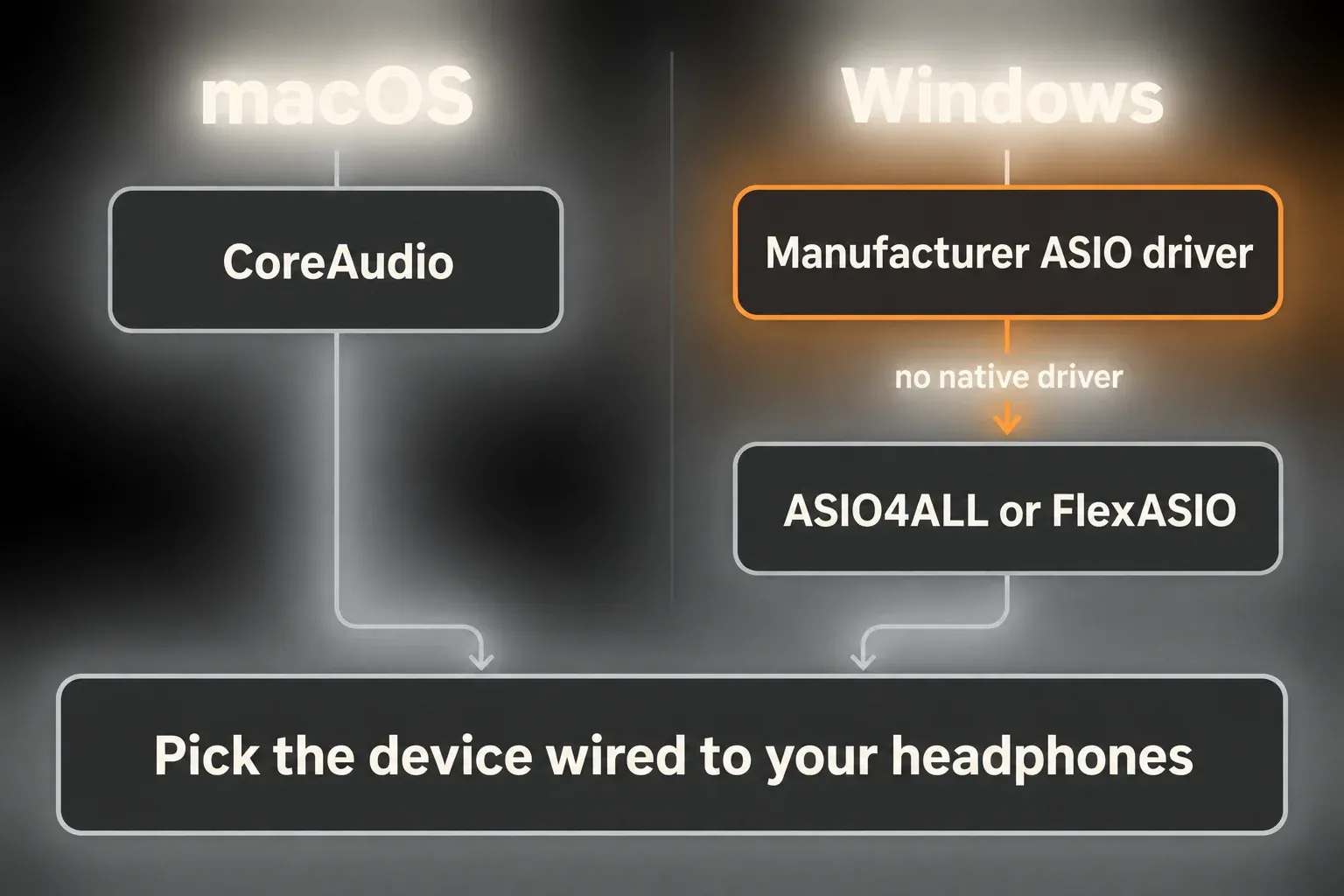
In Settings → Audio, choose CoreAudio on macOS or ASIO on Windows, using the interface manufacturer’s native ASIO driver where one exists. Select the device that is physically connected to your headphones and input. On macOS you can choose input and output separately, and an output-only test can use No Device for input. With a typical Windows interface ASIO driver, its inputs and outputs come as one package, so don’t expect a separate laptop headphone socket to become one of that interface’s outputs.
In Input Config and Output Config, activate only the mono and stereo channels you expect to use. Ableton’s audio-interface setup guide notes that unused channels add a constant processing cost. A two-in, two-out interface may already have the basic channels switched on.
For an existing project, keep its intended sample rate. In a new empty Set, use a supported default such as 44.1 kHz unless your workflow calls for another rate; a higher rate doesn’t make a better first setup by itself. Change it in one place, check that the interface agrees, and replay the same material before you change anything else.
Windows without an external audio interface
For built-in Windows audio with no native ASIO driver, Ableton documents ASIO4ALL and FlexASIO as alternatives. Get the official project download through that guidance, not through a driver-updater ad. You don’t need to buy an interface just to draw notes and hear an included instrument.
For ASIO4ALL, install it, choose ASIO as Driver Type and ASIO4ALL v2 as Audio Device, then open Hardware Setup. Expand the built-in sound device and enable the output your headphones are connected to, plus an input only if you need one. Ableton’s ASIO4ALL setup shows that panel. It’s a fallback, not an upgrade over a working manufacturer ASIO driver, so use the native driver for any interface that provides one.
Set the buffer for the job, not a magic number
A lower buffer shortens the monitoring delay but gives the processor less time to finish each block of audio. A higher buffer adds latency and buys more processing time. Ableton lists 256 or 512 samples as a general compromise in its interface guide, but the values on offer and what stays stable depend on the driver, the computer and the Set.
- Choose one available middle value.
- Play Live’s test tone or a factory audio clip through headphones. If Live itself is silent, an online tone generator tells a Live problem apart from a system-output problem.
- If playback is clean, keep that value as your baseline.
- Lower it later only when live monitoring or instrument response needs it.
- If crackling appears, go back to the last value that worked before changing anything else.
On Windows, some drivers put their buffer controls in Hardware Setup instead of Live’s buffer chooser. If the delay makes playing uncomfortable, follow the recording-latency checks; for clicks or interruptions, use the crackling and dropouts guide. A browser or music player that plays fine doesn’t prove Live has selected the same output device.
Configure MIDI by function
Connect the controller and open Settings → Tempo & MIDI in current Live 12.4. Earlier Live 12 versions and some Help screenshots call the combined section Link, Tempo & MIDI, while the current First Steps settings reference shows the newer layout. Many supported controllers set themselves up automatically, so don’t add duplicate Control Surface entries when the existing setup works. Push 3 doesn’t need a manually chosen Control Surface entry.
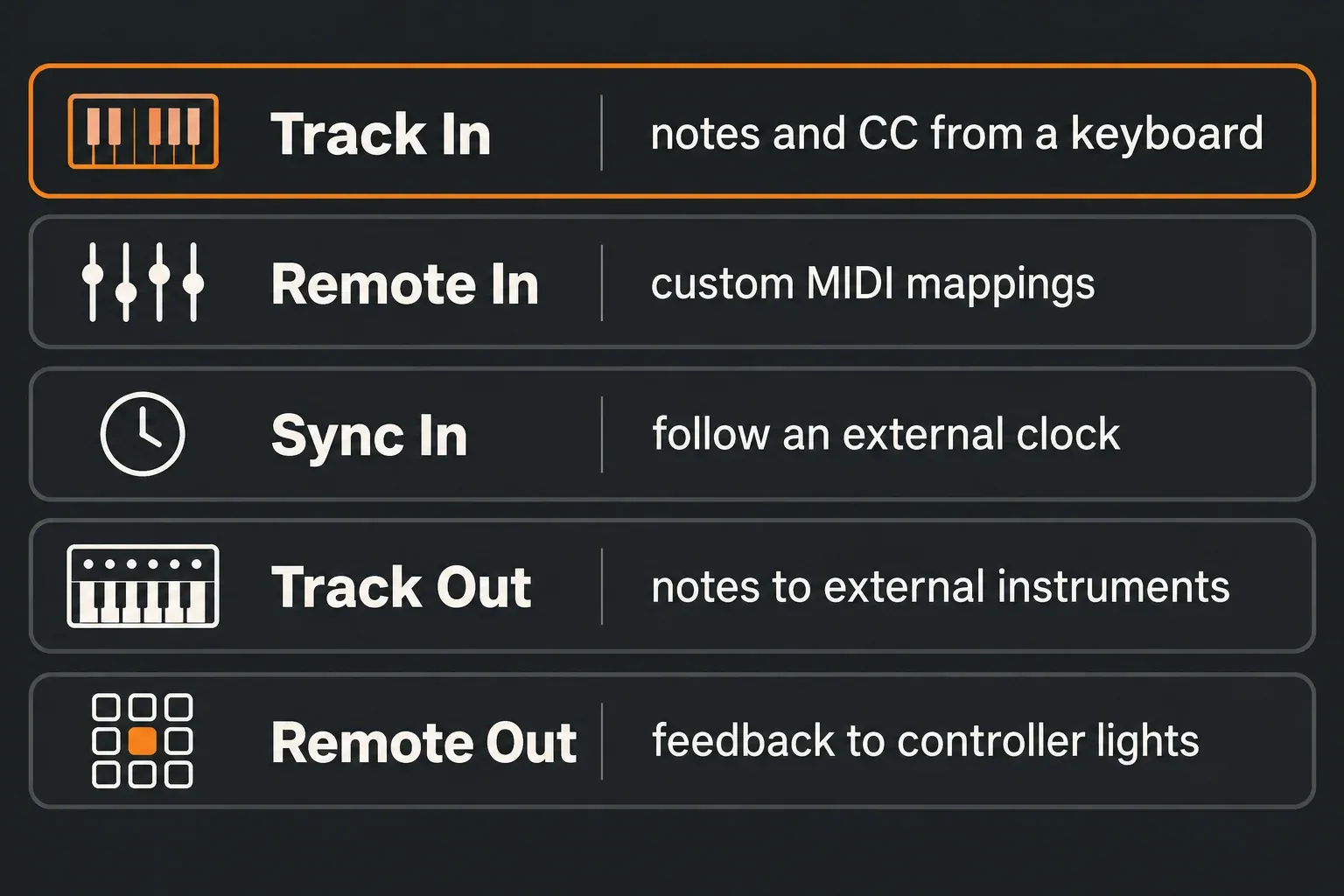
- Track In receives MIDI notes and CC messages from a keyboard or another source.
- Remote In enables custom MIDI mappings, including mapped clip-launch controls. A supported control-surface script may handle its own controls without any manual mapping.
- Sync In lets Live follow an external MIDI clock or receive MIDI Timecode. Sync Out sends MIDI Clock; Live doesn’t send MIDI Timecode. Leave these off for a keyboard-only note test.
- Track Out sends notes or CC to an external instrument or application. A plain controller with no sound generator of its own usually doesn’t need it for playing Live’s instruments.
- Remote Out is a different function: it can send status feedback to mapped LEDs or motorized faders. Turn it on only when the controller’s documented setup needs that feedback.
The MIDI Settings reference warns against unnecessary ports, especially Sync In and Out on the same device and several competing clock inputs. Keeping port settings minimal prevents stray messages and feedback; it doesn’t promise a measurable RAM saving. Follow a controller’s specific setup instead of enabling every switch.
Check that the MIDI keyboard reaches the intended track
- Create one MIDI track, load an included instrument and pick the controller in MIDI From. Use the expected MIDI channel, or All Channels for this isolated test.
- Arm the track and set Monitor to Auto. Play a key and watch both the MIDI-input indicator and the instrument track’s audio meter.
- If you don’t own a controller, skip this input check and draw notes in the playback test later on. That tests the instrument and the output, not an external MIDI connection.
A flashing global MIDI indicator only proves that Live receives some MIDI activity. It doesn’t prove the intended track is getting the right channel or playable notes. Check MIDI From, the channel, Arm, monitoring, the instrument and its key range. The MIDI notes but no sound diagnosis separates those stages from a fault further down in the audio output.
Place the User Library before filling it
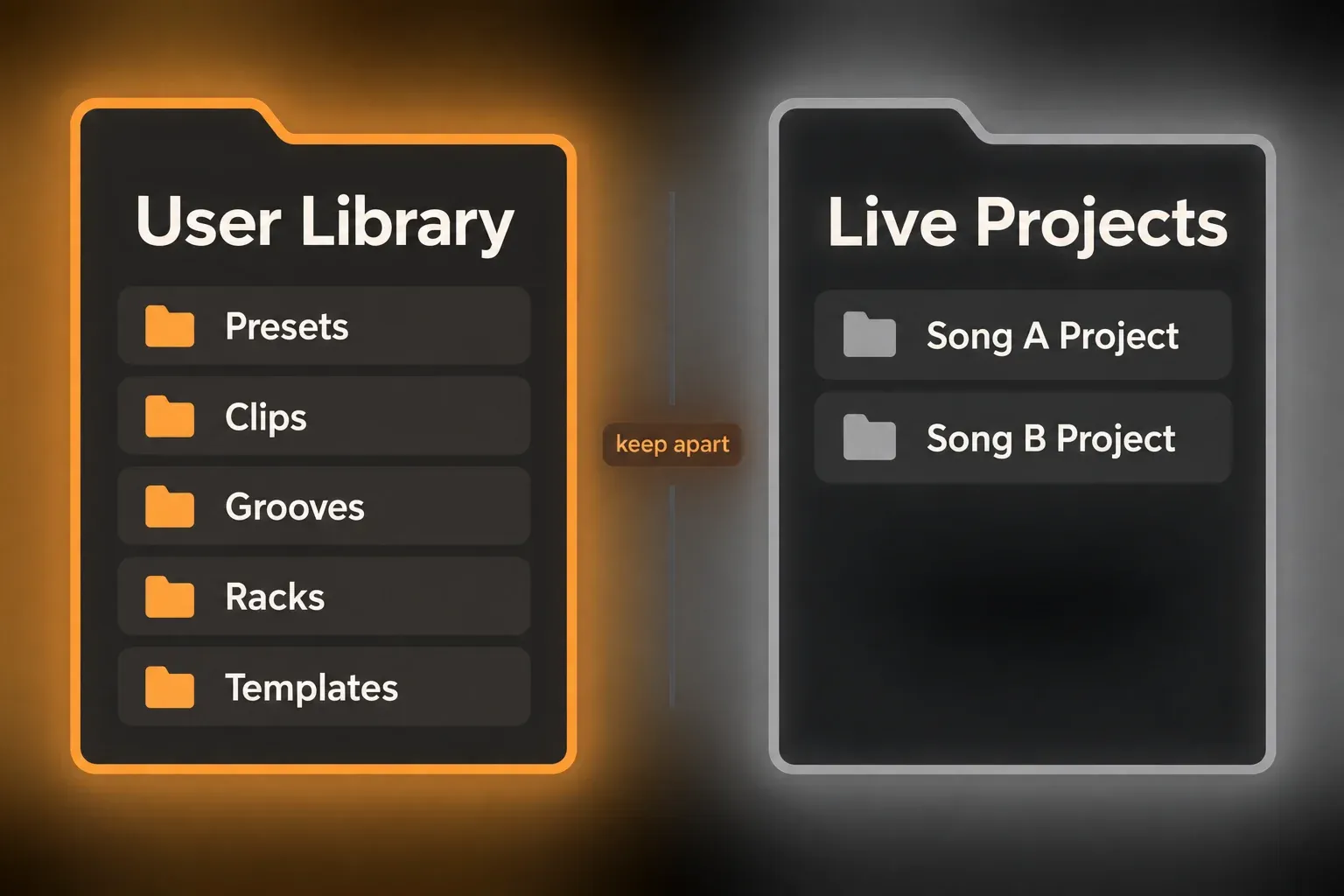
The User Library holds material you create or save: presets, defaults, clips, grooves, racks, samples and templates. Ableton recommends keeping ordinary Live Projects somewhere else. That’s an organizing rule, not a claim that a Set file can’t physically sit inside the library, and separate project folders are simply easier to back up and move.
The default locations are:
- Windows:
\Users\[username]\Documents\Ableton\User Library - macOS:
/Users/[username]/Music/Ableton/User Library
To find the actual library, right-click User Library in Live’s Browser and choose Show in Finder or Show in Explorer; the defaults can differ if Documents or Music has been moved. To move an existing library, back it up, move its folder in Finder or File Explorer, then choose the new location in Settings → Library. Pointing Live at a new empty location is not the same as moving your existing content. The User Library instructions allow a local folder or an external drive; check that saved presets and samples open afterwards.
In Places, add the content folders you actually browse, not a whole drive. The Browser manual warns that huge locations can slow indexing or trigger repeated re-indexing. Keep Packs, the User Library, projects and third-party collections easy to tell apart instead of nesting duplicate copies inside each other.
Install Packs and plug-ins after the baseline passes
Open the Packs label in Live’s Browser and install only the included content you need for the next project. Let each installation and index pass finish before you judge launch speed or Browser results. For third-party plug-ins, use the developer’s installer and the default format-specific locations, and avoid copying raw plug-in files between computers or creating duplicate scan folders.
Installing a Pack uses storage; it doesn’t load every instrument or sample into RAM. Install what the next project needs and test it before adding more. Keep your existing personal content backed up; there’s no reason to delete a working library to follow this order.
Run a complete first test
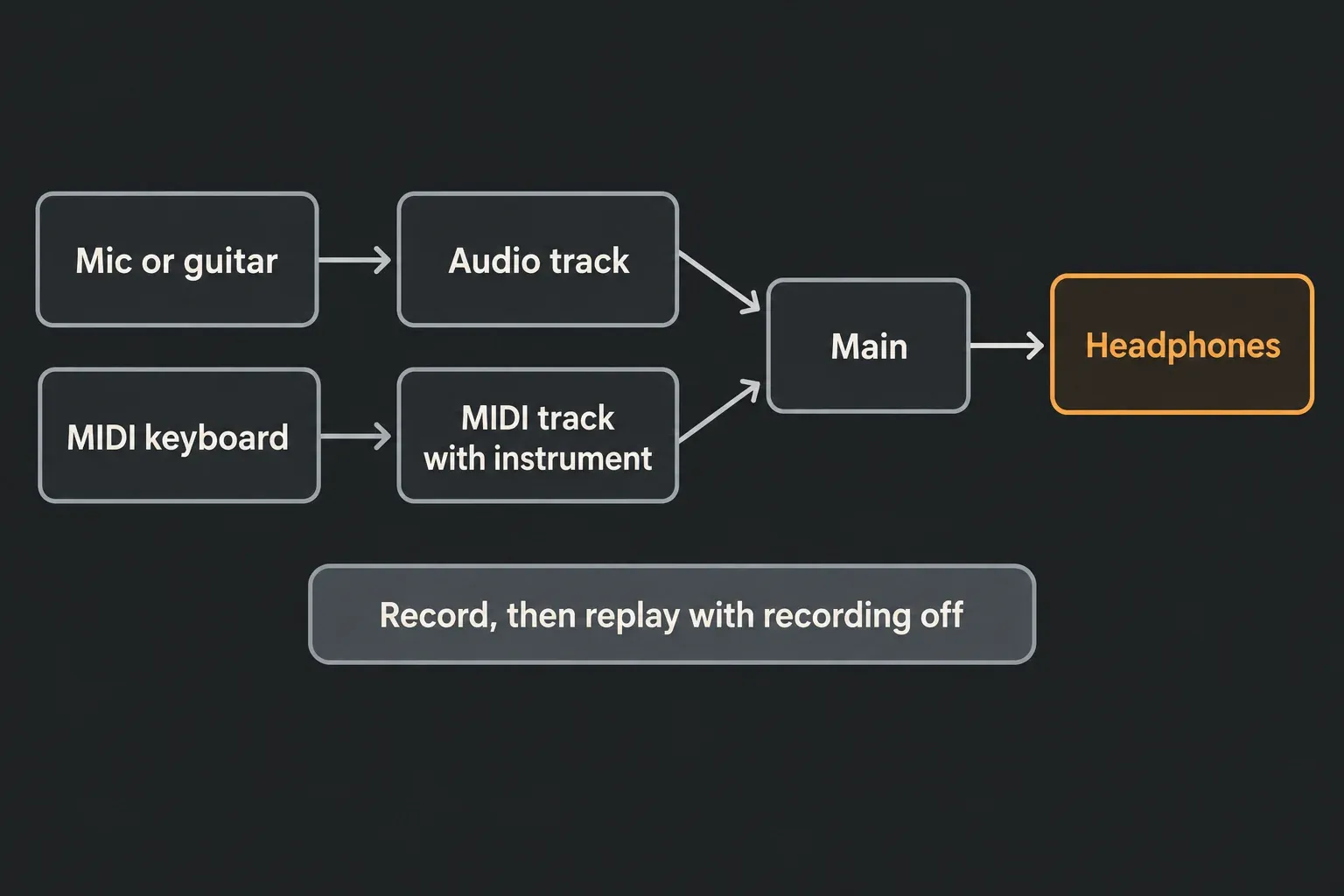
Audio route
- If you have a suitable audio input, connect one microphone or instrument as the interface’s instructions describe. Use headphones for this test so a live microphone can’t feed back through speakers.
- Create an audio track in Arrangement, choose the exact mono input and arm only that track. For direct hardware monitoring, set Monitor to Off in Live; to listen through Live, use Auto on the armed track and avoid a second direct-monitor path.
- Check that the input signal isn’t clipping. Turn on Arrangement Record, record about ten seconds and stop. Disarm the track and play it back from the start with recording off.
- Confirm that the recorded waveform plays through the chosen output. If there is no input on macOS, check Live’s microphone permission before touching unrelated MIDI settings. Without a suitable audio input, skip this capture test instead of calling it passed.
On macOS, microphone access applies to all audio inputs, external interfaces included. Grant Live access if needed, relaunch it, and use Standard Mic Mode where that macOS control exists.
Record MIDI, or draw notes if you have no keyboard
- Use the MIDI instrument track you already made. With a keyboard connected, arm it with Monitor Auto, record four notes into Arrangement and stop recording.
- Without a keyboard, create a MIDI clip in Arrangement and draw four notes inside the instrument’s playable range. That checks MIDI playback, not controller input.
- Disarm the track, leave Monitor on Auto or Off, go back to the clip’s start and play with Arrangement Record off.
- Confirm the notes play, the track’s audio meter and the Main meter move, and you hear it in the selected headphones. A meter on its own isn’t a complete listening check.
Save the test Set into its own project folder, outside both the User Library and the application folder. Reopen it and check playback. Keep this small reference before you install another device or customize a Default Set; it gives you something that already works to compare every change against.
Keep storage and running memory separate
An empty Set with one included instrument gives you a useful baseline for later plug-ins. Don’t chase the smallest possible buffer before playback is confirmed clean; that can trade stability for latency you don’t need yet.
Installed Packs take up disk space. Loading their samples and instruments into a Set affects working memory and processing, and recording creates new audio files. Those are separate costs, not one number to shrink by switching off MIDI ports.
Keep your User Library backup and project backup apart from disposable downloads. For a portable project, the Collect All and Save guide explains which referenced files to gather, since saving the .als alone doesn’t necessarily copy every external sample.
Add one new content source or plug-in at a time, and replay the test Set before changing another part of the setup. Keep the controller and audio connections you need; unplugging essential hardware isn’t a resource optimization.
First-run indexing can raise activity for a while. Let it finish before comparing startup or Browser performance, but look into persistent re-indexing, freezes or dropouts instead of assuming every problem is normal.
FAQ
What audio driver should I use in Ableton Live 12?
Use CoreAudio on macOS. On Windows, prefer the audio interface manufacturer’s native ASIO driver. With built-in Windows audio and no native ASIO driver, Ableton documents ASIO4ALL as an alternative; select the real built-in input and output in its Hardware Setup panel. A generic driver won’t turn an interface’s output into the laptop’s headphone socket.
What buffer size should a beginner use in Ableton?
No single value suits everyone. Start with an available middle setting; Ableton lists 256 or 512 samples as a general compromise. Keep the lowest stable value that suits what you’re recording or playing back at the moment.
Which MIDI ports should I enable in Ableton?
For a basic keyboard, enable Track In for notes and CC. Use Remote In for custom mappings and Remote Out only for feedback your controller needs. Leave Sync off unless you’re setting up external synchronization: Live sends and receives MIDI Clock but only receives MIDI Timecode. Supported controller scripts may configure their own ports automatically.
Where is the Ableton User Library?
By default the User Library sits in Documents/Ableton/User Library on Windows or Music/Ableton/User Library on macOS, inside your user account. Right-click User Library in Live to reveal its actual folder. It stores user presets, clips, grooves, racks, samples and templates; keep ordinary project folders separate, as Ableton recommends.
Should I install all Ableton Packs before starting?
No. Prove the audio and MIDI paths first, then install only the Packs the next project needs. Let installation and indexing finish before adding another content source.
How do I know my Ableton setup works?
Record and replay a short audio clip if you have an input, and record or draw four notes on a MIDI instrument track. Check the track and Main meters, and listen through the selected output with recording off and the track disarmed. Drawing notes checks playback, not a connected controller’s input. Save and reopen the small test project.
