


Choose the workflow before the edition
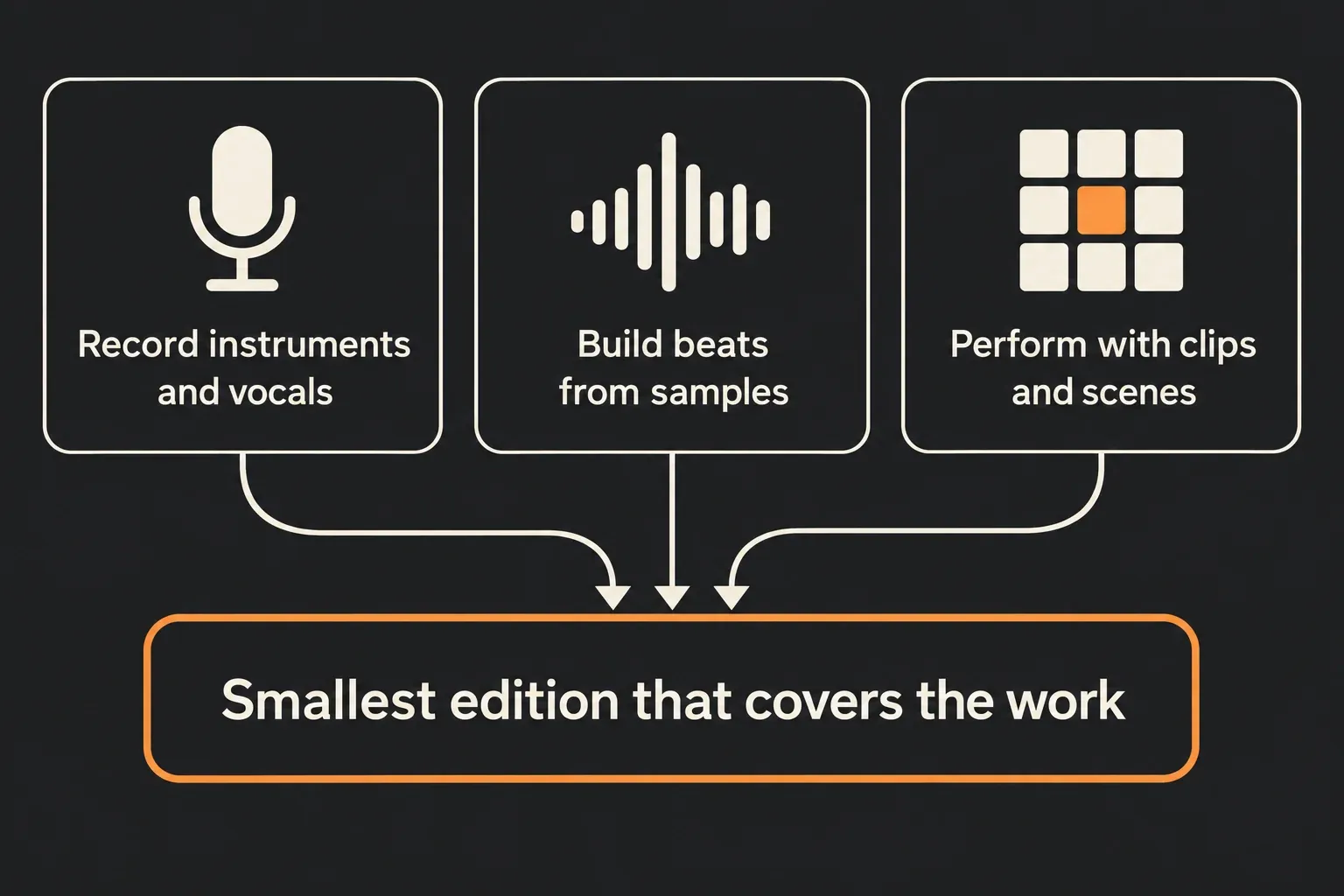
Ableton Live is a strong choice when clips, improvisation, sampling, performance, or moving quickly between loose ideas and a timeline match the way you work. It isn’t automatically the best DAW for every musician, and Suite isn’t automatically the right edition for every Live user. Start with the work you need to finish, then find the smallest toolset that covers it.
This hub covers suitability, computer and hardware checks, trials, Intro, Standard and Suite, upgrades and comparisons with other DAWs. Prices, bundles and compatibility change, so every decision should end at Ableton’s own store, edition table and system requirements, not at an old screenshot or a copied price.
Test the work you actually plan to do
Write down three typical jobs: recording a vocal and an instrument, building a beat from samples, arranging a whole song, editing MIDI, mixing a dense project or performing with scenes and controllers. During a trial or demo period, finish those jobs with your own interface, plug-ins and files. An empty template or a polished tutorial tells you very little.
Notice navigation, editing speed, how clear the routing is, CPU stability and how easily you recover from a mistake. Session View earns its place when launching things out of order serves the music; Arrangement View handles a traditional timeline. Having both is what sets Live apart, but it only matters if you’ll really use both, not just admire the option.
Check collaboration before you commit. If bandmates, clients or a course use another DAW, decide whether you need full project exchange or only stems, MIDI and reference files. Switching applications costs learning and migration time even when the new software is perfectly capable.
Verify the computer, interface and plug-ins
Use Ableton’s current system requirements and compatibility guides for the exact Live release, operating system and processor. A minimum spec only tells you it’s supported; it can’t predict how big a project you’ll be able to run.
Install Live following Ableton’s current installation guidance, then test the audio interface, driver, MIDI controller and third-party plug-ins you plan to use. Confirm the plug-in formats you rely on, and whether old projects contain devices that are no longer supported. Measure your busiest realistic session, not just startup time.
Storage starts to matter as Packs, sample libraries and recorded projects grow. Keep enough local working space and decide where the User Library and project media will live. A cheaper edition saves nothing if its limits push you into a workflow you already know you’ll outgrow, and owning every included device adds nothing if you mostly use a small external setup.
Compare Intro, Standard and Suite by the missing requirement
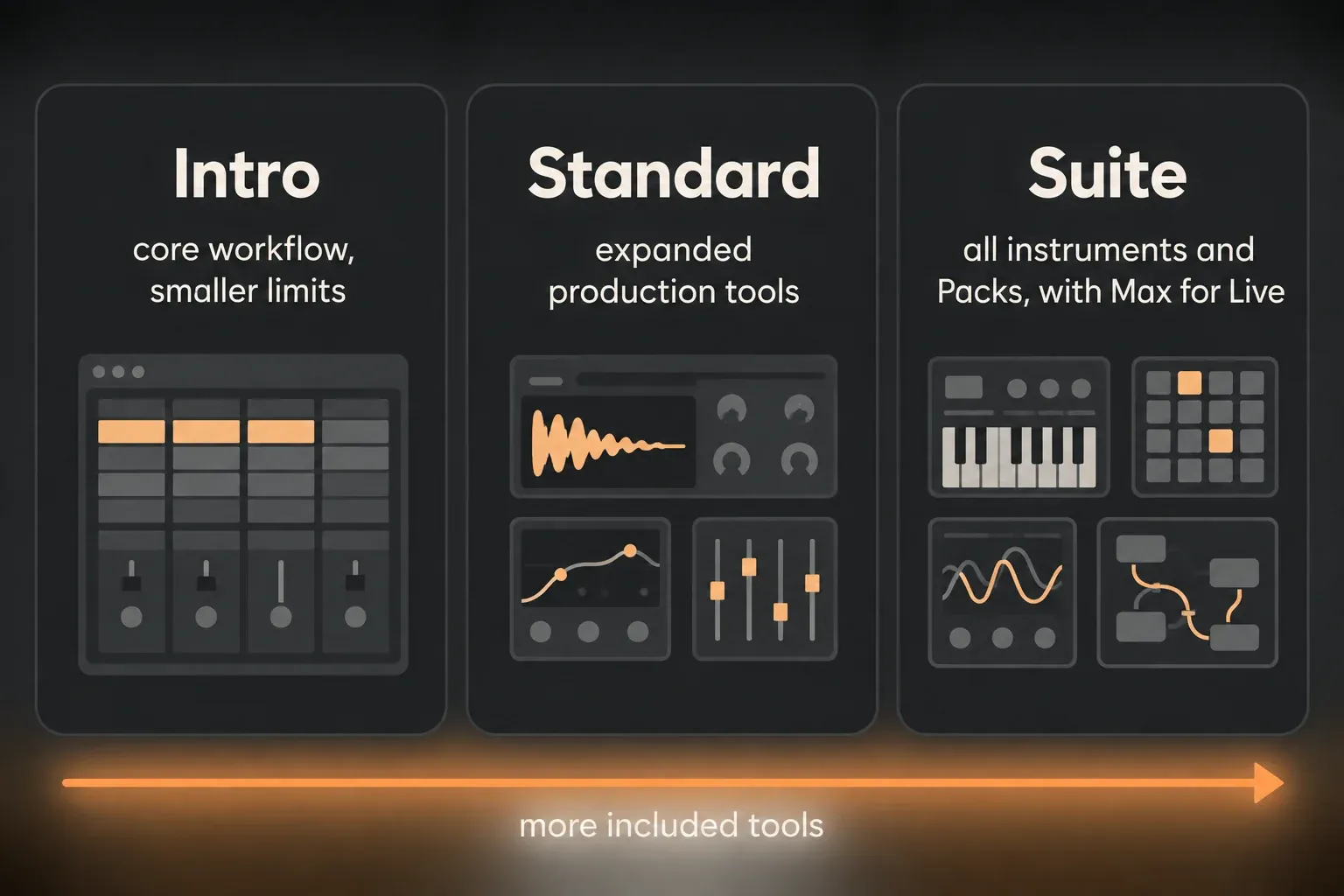
Ableton’s current edition comparison lists three Live 12 editions: Intro, Standard and Suite. That table is the source of truth for included features, instruments, effects, Packs and limits, so read it with your list of jobs beside it.
Intro can be the right fit when the core recording, clip and arrangement workflow suits a smaller project and its limits stay comfortable. Standard widens the production environment without asking you to take every instrument and Pack in Suite. Suite makes the most sense when you specifically need its included instruments, effects, sound content or Max for Live.
Don’t pick Suite because it’s labelled complete. Name the Suite-only tools you’ll use in your next projects and weigh them against the upgrade difference and the third-party tools you already own. Equally, don’t pick Intro just for the lowest entry price if your normal track count, routing or content needs already go past its current limits.
| Overview | Intro | Standard | Suite |
|---|---|---|---|
| Key features | Limited | Expanded | Full |
| Software instruments | 8 | 12 | 21 |
| Packs | 4 | 16 | 33 |
| Presets, samples, loops | 5+ GB | 38+ GB | 71+ GB |
| Audio effects | 27 | 36 | 59 |
| MIDI effects | 12 | 13 | 14 |
| MIDI tools | 1 | 17 | 17 |
| Modulators | 2 | 6 | 6 |
These numbers are a dated checkpoint, not a promise about future bundles. Before you pay, open the official table and confirm the exact device, Pack or limit your project depends on.
Ableton’s webshop works out upgrade options per account, so check while signed in instead of trusting a generic upgrade price. The shop also lists a rent-to-own plan, currently offered for Suite only. Educational eligibility, bundled Lite licenses and promotions need their current official terms as well. This hub deliberately doesn’t freeze a price that may be wrong by the time you buy.
Compare DAWs by repeated work, not feature totals
For Ableton versus FL Studio, compare how each one handles your pattern building, audio editing, arrangement and automation. For Ableton versus Logic Pro, add operating-system requirements, recording, included content, Live Loops or Session-style work and collaboration. For Ableton versus Bitwig, test modulation, routing, clip workflows, hardware integration and project stability on the same task.
Take one short project and repeat it in each candidate. Time the setup steps that matter, note the workarounds and export the same deliverables. A feature matrix can show that a function exists, but not whether where it lives fits your habits.
Don’t borrow another publication’s verdict. A performer, a sample-based producer, a recording songwriter and a post-production editor can reach different answers from the same products. A useful verdict says who the choice serves, what it gives up and what evidence would change the recommendation.
Plan the first month before purchasing
Pick one project, one template and a limited set of devices. Learn recording and routing, clips and arrangement, basic editing, export and backup before you grow the library. Write down every edition limit you actually run into; real constraints are better evidence for an upgrade than fear of missing out on a feature.
Keep the installer and authorization details available through your account, keep projects collected with their media, and document third-party dependencies. If the trial shows Live isn’t the right fit, export stems and MIDI before moving on. A clean exit is part of a good evaluation.
Questions about choosing Ableton Live
Which Ableton Live edition should a beginner choose?
Choose the least expensive current edition that covers the projects you can name, then check its limits on Ableton’s comparison page. Intro may suit smaller needs, Standard widens the production environment, and Suite makes sense when you need its specific devices, Packs or Max for Live.
Is Ableton Live good for recording instruments and vocals?
Live supports multitrack audio recording, editing, comping, routing and mixing. Test it with your interface, driver, microphone workflow and a typical session, because whether it suits you depends on the whole recording system and on how you like to edit.
Should I buy Suite if I already own plug-ins?
Not automatically. List the Suite-only instruments, effects, Packs and Max for Live features you’ll use, then compare them with the tools you already own and the current upgrade cost. Paying twice for the same capability may be worth less than a smaller edition.
How should I compare Ableton Live with another DAW?
Repeat the same short project in both applications with your own audio, MIDI, plug-ins and export needs. Compare task speed, routing clarity, stability, collaboration and the workarounds you needed. Feature counts alone don’t measure how well a workflow fits.